
Breath Visualizer, Tempo & Practice Controls
How Time to Sing automatically tracks breath support, how to tailor scroll speed and tempo to your eyes and ears, and how to configure in-workout settings.
Great singing is not just about hitting pitches; it is about the airflow powering them. If your breath support collapses halfway through a phrase, your vocal cords have to squeeze to compensate, resulting in throat tension and cracked high notes.
Time to Sing trains both sides of your technique. You do not need to flip confusing switches or toggle technical modes — the app recognizes the exercise you chose and automatically presents the ideal visualizer for the job.
Ma-Ma-Ma Agility & Register Warm-Up
Step-wise melodic patterns designed to release vocal fold tension, activate forward resonance, and develop muscle memory for clean interval jumps.
What Happens When You Tap an Exercise
Whether you select an exercise from the Training catalogue or tap a card in your daily For You routine, you are greeted by the Exercise Intro screen:
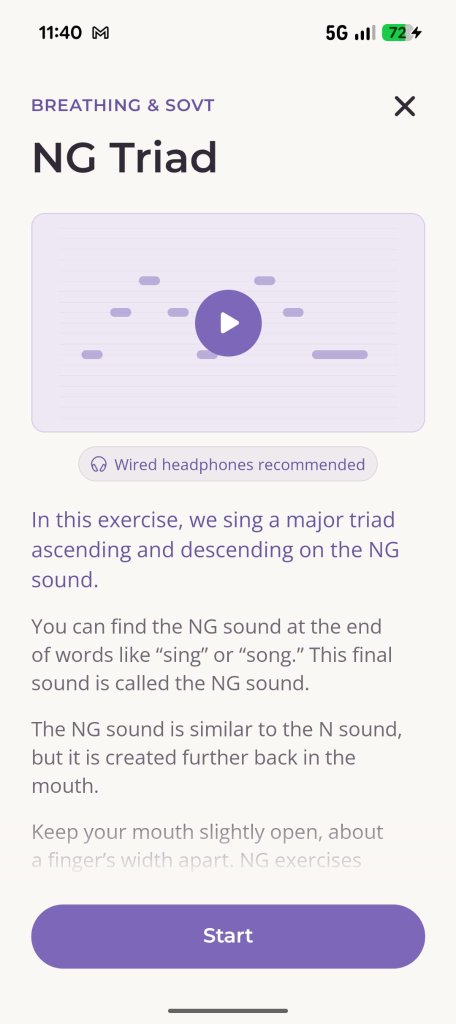
The Exercise Intro Screen
Preview the melody, read mouth and vowel cues, then tap Start when you are ready.
Before making a sound, you can:
- Preview the Pattern: Tap the play icon on the mini piano-roll card to hear how the phrase ascends and descends.
- Review Physical Cues: Read concise coaching instructions on tongue position, jaw release, and vowel shaping (e.g. creating a soft palate ring on "NG" without throat tension).
- Audio Setup: The screen reminds you if wired headphones or earbuds are recommended for optimal pitch isolation.
When you are ready, tap the purple Start button to step onto the virtual practice stage.
Musical Count-Ins (Not Always 3 · 2 · 1)
As soon as the workout begins, the piano roll appears with vertical keys on the left, and a bold animated countdown fills the center of the screen:
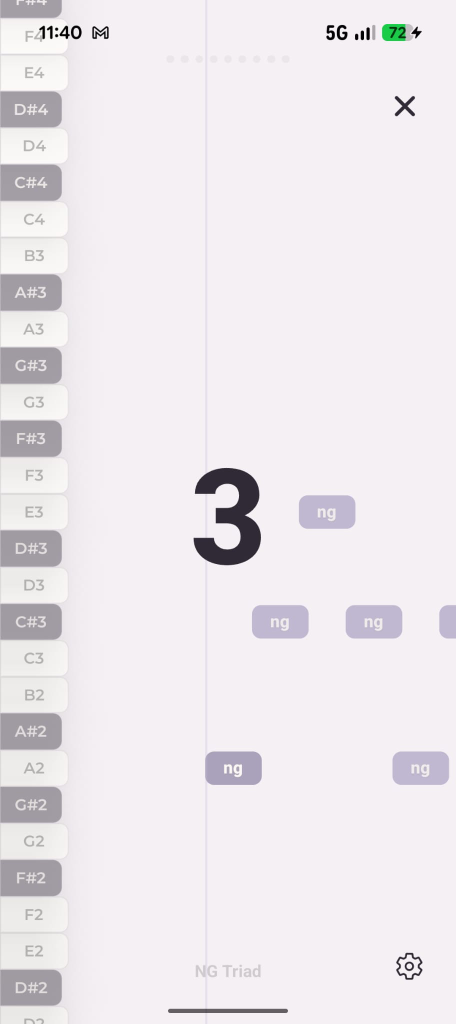
Musical Countdown on the Piano Roll
Gear icon in the bottom-right corner opens your in-workout settings.
The countdown is musical, not arbitrary:
- In 4/4 time, you will typically see 4 · 3 · 2 · 1.
- In 3/4 or waltz meters, you will see 3 · 2 · 1.
- If a melody starts with a pickup phrase or anacrusis (an upbeat before measure one), the count-in may be a short 2 · 1.
Use those beats to align your posture, drop your shoulders, and let your abdomen expand with a quiet, relaxed inhalation before the first note reaches the playhead line.
In-Workout Settings: Gear Icon
Singing should feel comfortable. If a riff moves too quickly or notes scroll across your screen at a pace that strains your eyes, you do not have to struggle through.
Tap the Gear icon in the bottom-right corner of the workout screen to slide up your practice controls:
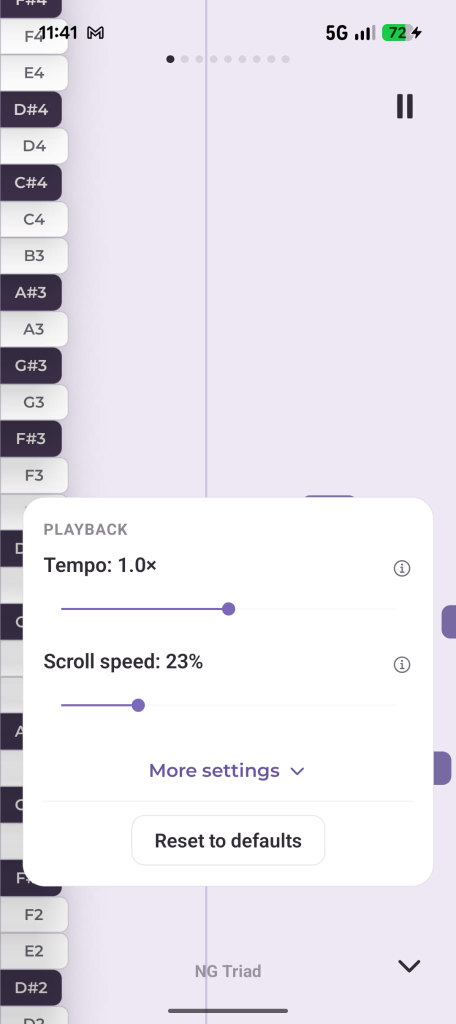
Core Controls
Adjust Tempo and Scroll Speed mid-exercise.
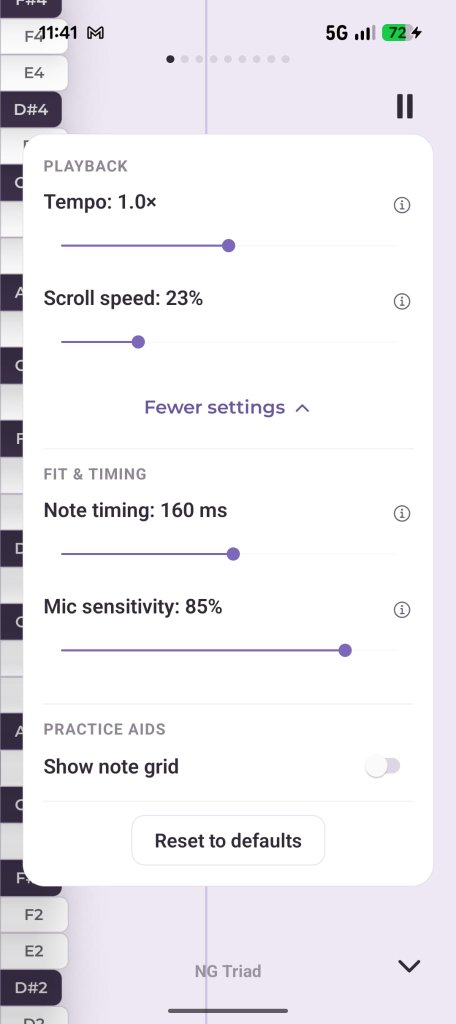
More Settings
Fine-tune timing, microphone input, and note grid display.
In-Workout Settings Overview
Tailor playback tempo and visual scroll speed so practice feels natural and strain-free.
1. Playback Tempo (0.5× to 1.5×)
Tempo controls the musical speed of the exercise:
- Slow Down to 0.7× or 0.8×: Essential when learning rapid sixteenth-note runs, jazz ornaments, or tricky half-step blues progressions. Slowing down gives your brain and vocal cords time to cleanly coordinate pitch transitions rather than sliding vaguely between notes.
- Standard 1.0×: Full performance tempo once the muscle memory is secure.
- Boost to 1.2× or 1.5×: Challenge your agility, reflex speed, and breath stamina.
2. Scroll Speed: What It Is & Why It Matters
Many singers confuse Tempo with Scroll Speed. They do completely different jobs:
- Tempo changes how fast the music plays (audio speed).
- Scroll Speed changes how fast the note blocks travel across your screen (visual speed).
Why Adjust Scroll Speed?
Every person processes visual information differently. If note blocks appear to fly across the screen too quickly, your eyes can feel overwhelmed, creating physical tension before you even sing a note.
- Slide Left (Lower %): Note blocks become shorter and glide across the screen slower. This widens your visual reading space, giving you a calm, uncluttered view of upcoming intervals.
- Slide Right (Higher %): Note blocks become longer and travel faster. This creates a tighter, more dynamic display favored by singers who prefer rapid eye-ear tracking.
3. More Settings: Timing, Mic & Note Grid
Tap More settings ⌵ to reveal fine-tuning parameters:
- Note Timing (Visual Latency Offset): Sliders in milliseconds (e.g.
160 ms). If you practice with Bluetooth headphones that introduce wireless audio lag, adjusting this offset aligns the visual playhead with what you actually hear in your ears. - Mic Sensitivity (%): Fine-tune microphone sensitivity to match your room acoustics and natural singing volume.
- Show Note Grid: Toggle subtle horizontal pitch grid lines on the piano roll background to clearly separate semitones.
- Reset to Defaults: Return all sliders to standard factory settings in one tap.
Automatic Visualizers: Melodies vs. Breath Support
When you tap an exercise in your workout, the interface adapts seamlessly:
1. The Piano Roll (Pitch & Intonation)
Whenever you practice scales, arpeggios, intervals, or stylistic runs, you see the scrolling piano roll. Target blocks glide across the keys while your live pitch ribbon measures intonation against target frequencies in real time.
2. The Breath Visualizer (Airflow & Diaphragm Support)
When you select exercises from the Breathing & SOVT category (such as sustained hissing "Ssss", unvoiced consonants, or lip rolls), the piano keys make way for a dedicated breath flow canvas.
Instead of hunting for specific musical pitches, you are training steady, pressurized breath flow:
- As the playhead travels across the horizontal breath block, the app’s microphone measures your vocal volume and airflow pressure in decibels.
- Sustained Green Bar: When you maintain steady, continuous breath support without gasping or fluctuating, the block fills smoothly with vibrant green.
- Breath Gaps: If your airflow weakens, wobbles, or runs out before the end of the phrase, dark gaps appear along the track.
This gives you immediate, visual proof of whether your diaphragm is supporting evenly or dumping all its air on beat one.